A tour of the desktop app: nine tabs, one safety model
SweepLoom's desktop app was redesigned around nine tabs: Overview, Sessions and History for live pressure; Cleanup, Projects and Explorer for disk; Browser and AI for the workspace; and Settings. What each tab shows, what changed in this release, and the rules every destructive action follows.
- #desktop-app
- #release
- #design
- #macos
- #safety
The CLI and the MCP server can only do one destructive thing: delete SAFE generated output after a review. Everything else a developer machine accumulates belongs to some other tool or to you. Docker owns its images, simctl owns simulators, Ollama owns its models, and an Xcode archive or a device backup is your data. Reclaiming that space needs a person looking at each row and confirming.
That is the desktop app's job. It is a native Rust (egui) reviewer for Windows, macOS and Linux, and this release rebuilt it around a design system and nine tabs. This post walks through them in sidebar order.
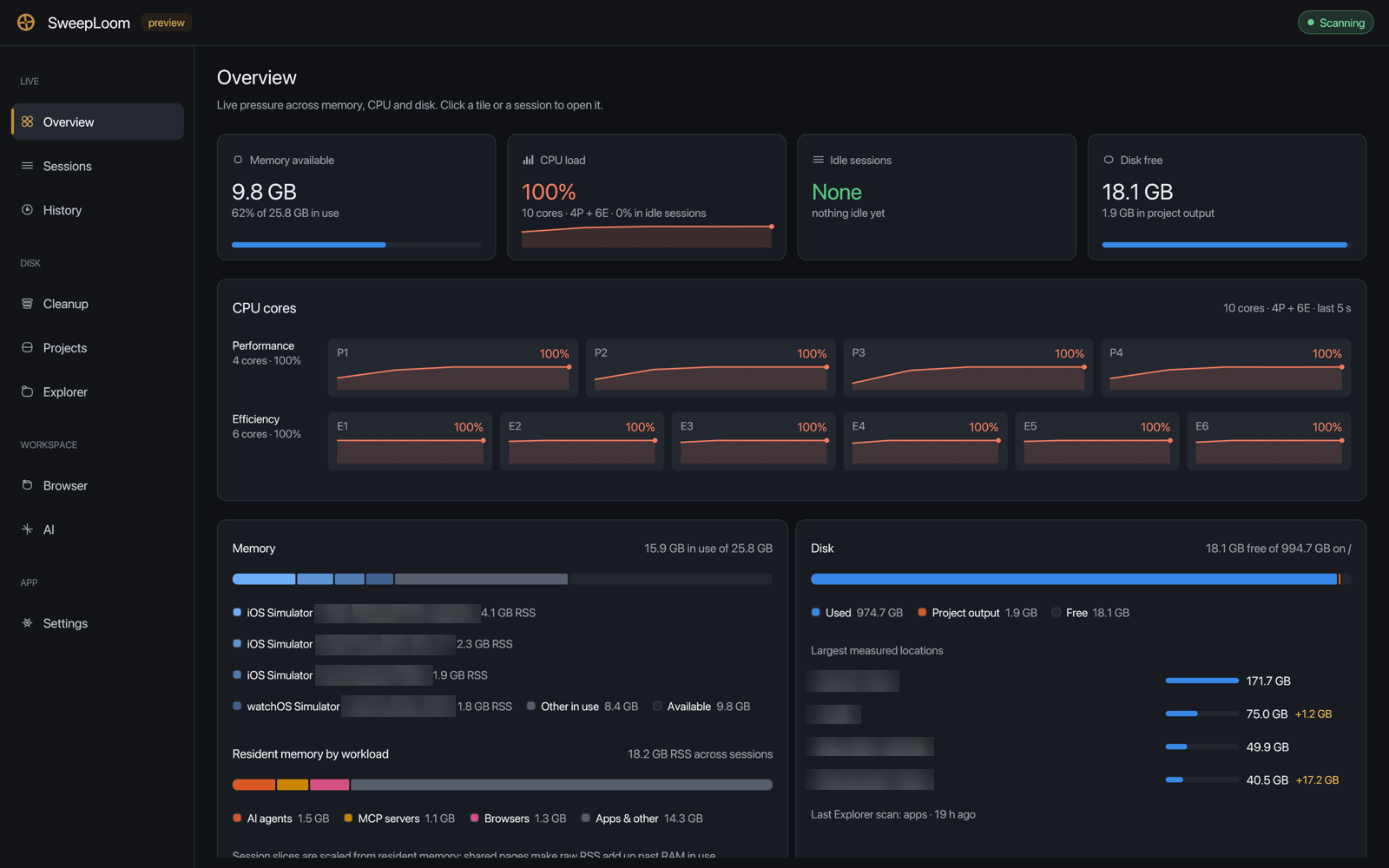
Overview on a 10-core Apple Silicon Mac under full load. Process names and paths are blurred in all screenshots.
What changed
Two screens merged into the tabs where they belong. Generated project output, which used to have its own screen, is now the first source under Cleanup. Saved disk scans now live under History, next to observed process activity. That took the sidebar to nine tabs in four groups:
LIVE        Overview · Sessions · History
DISK        Cleanup · Projects · Explorer
WORKSPACE   Browser · AI
APP         Settings
Everything is drawn with one set of parts: a spacing scale, cards, segmented controls, labelled inputs, status pills, stacked bars and sparklines, in light and dark. Deep links and the tray menu follow the new layout.
Live
Overview is four tiles (memory available, CPU load, idle sessions, free disk) and the breakdowns behind them. New in this release is a per-core CPU view: every core with a short history. On Apple Silicon, cores are grouped into performance and efficiency, read from the system's own hw.perflevel counters, so you can see when the efficiency cores are saturated while the performance cores idle. On other machines cores appear in OS order. Memory is split by session and by workload, with a note that session slices are scaled, because shared pages make raw RSS add up past the RAM you have. Every tile opens the screen that explains it.
Sessions turns hundreds of processes into the trees you run.
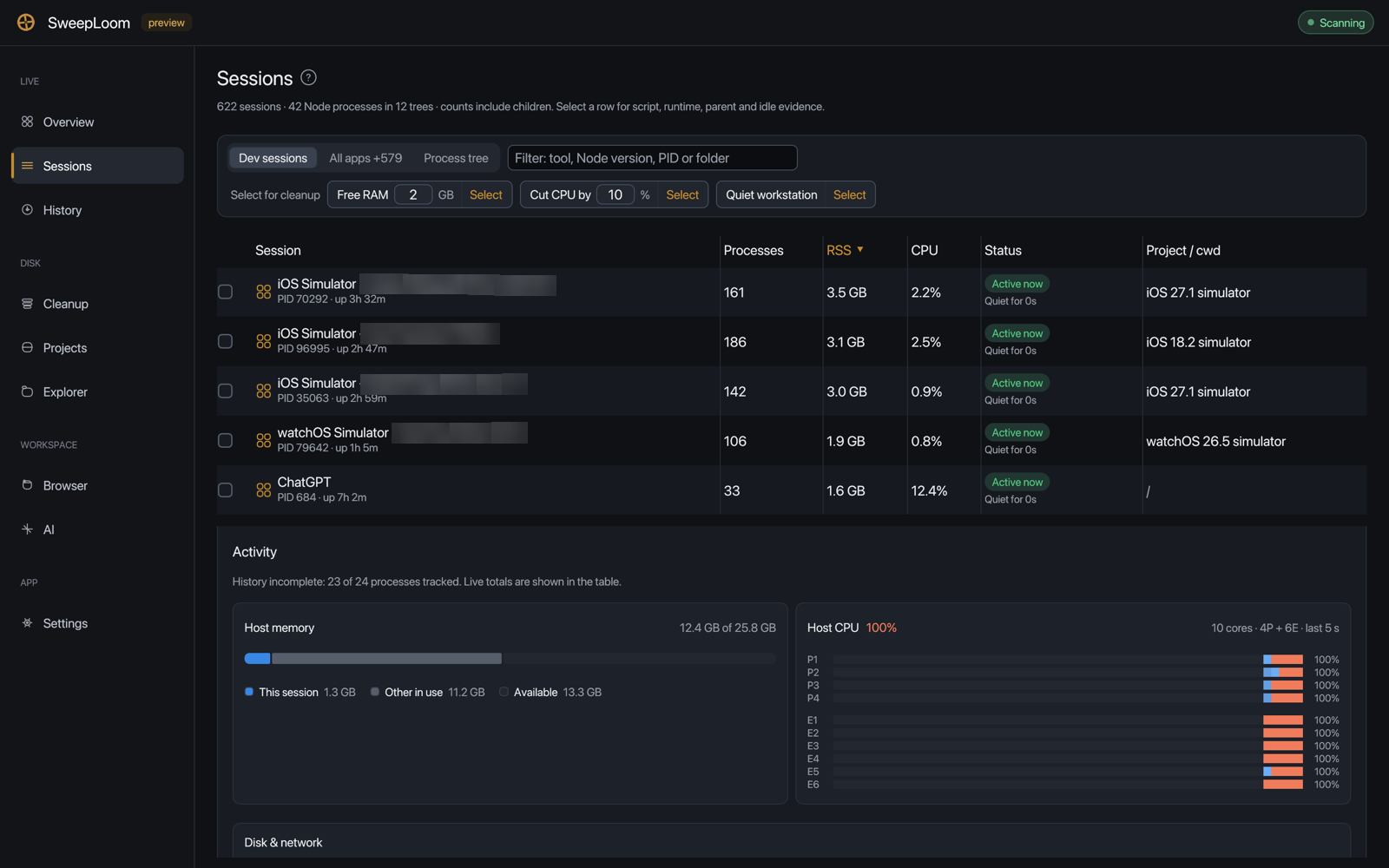
Dev sessions sorted by resident memory, with the selected session's activity underneath.
Three views (Dev sessions, All apps, Process tree), a filter for tool, Node version, PID or folder, and a planner: Free RAM, Cut CPU by, Quiet workstation. The planner only selects rows. Idle agents are Keep, and a recommendation never overrides a blocker. Stopping a session is a separate, confirmed action: membership is frozen by PID plus start time, a graceful stop comes first, and a project with uncommitted changes shows a warning. Selecting a row no longer runs git on the UI thread.
History has two views. Process activity is CPU and memory per session since SweepLoom started, never back-filled. Disk scans is every finished Explorer scan and folder measurement, kept across restarts, which is how you find the folder that grew back. Cleanup, Projects and AI all link here, and their Change column compares finished scans of the same kind.
Disk
Cleanup has seven sources, each with its own listing, selection, filter, sort and scroll position that survive switching tabs:
| Source | What it lists | How it removes |
|---|---|---|
| Project output | Generated builds, dependencies and temp files across your projects | Plan, revalidate, execute, receipt |
| Docker | Images, stopped containers, unused volumes, old build cache | Docker itself; in-use objects protected |
| iOS & Xcode | Simulators, runtimes, leftover device folders, CoreSimulator and dyld caches | simctl, after re-checking state |
| Build & packages | DerivedData per project, device support per OS version, package caches | Confirmed generated cleanup, or Trash |
| App & browser caches | Application caches, browser, IDE and Electron cache folders | Generated cleanup, or Trash |
| AI models | Ollama per model, Hugging Face, LM Studio, PyTorch, Whisper, Core ML | Ollama's local API, or Trash |
| Archives & large data | Xcode archives, device backups, large downloads, logs, toolchains | Trash; rustup for inactive toolchains |
The biggest change is iOS & Xcode. Simulators are now read from their device records on disk first, because simctl could take 40 to 80 seconds to answer, or time out, while CoreSimulator was busy. Then simctl confirms their state. Each row gets a plain-language verdict built from evidence. Keep for a running simulator, or one booted in the last month that holds an app from a project with recent commits or uncommitted changes. Suggested for one whose runtime is gone, that has not been booted in three months, or whose apps all come from deleted or stale projects. Review for everything in between.
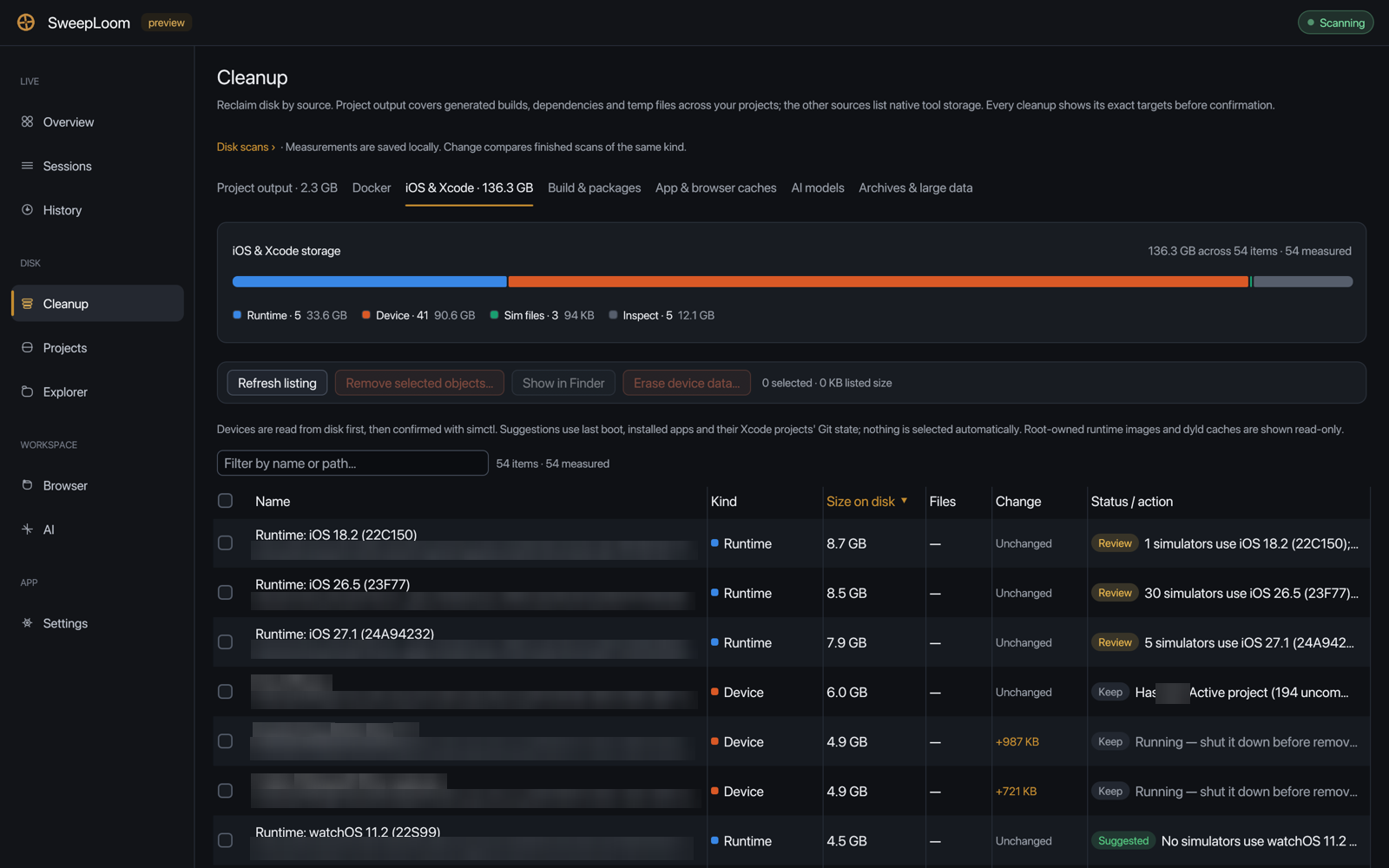
Runtimes list the simulators that still use them. Nothing in this source is selected automatically.
Devices whose runtime is gone are offered as one row, but SweepLoom never runs a blanket simctl delete unavailable. A runtime that is installed but not yet loaded makes its devices look unavailable for a while, so the row deletes exactly the shut-down devices it listed, by UDID, and aborts if that set changed. The details are in Reclaiming Xcode and iOS Simulator disk safely.
Project output keeps rebuild cost and safety on every row. Rows in a repository with uncommitted changes, an active process or a recent write are blocked, and Free up N GB selects eligible rows cheapest-to-rebuild first.
Projects now covers every developer folder rather than the folder the app was launched from.
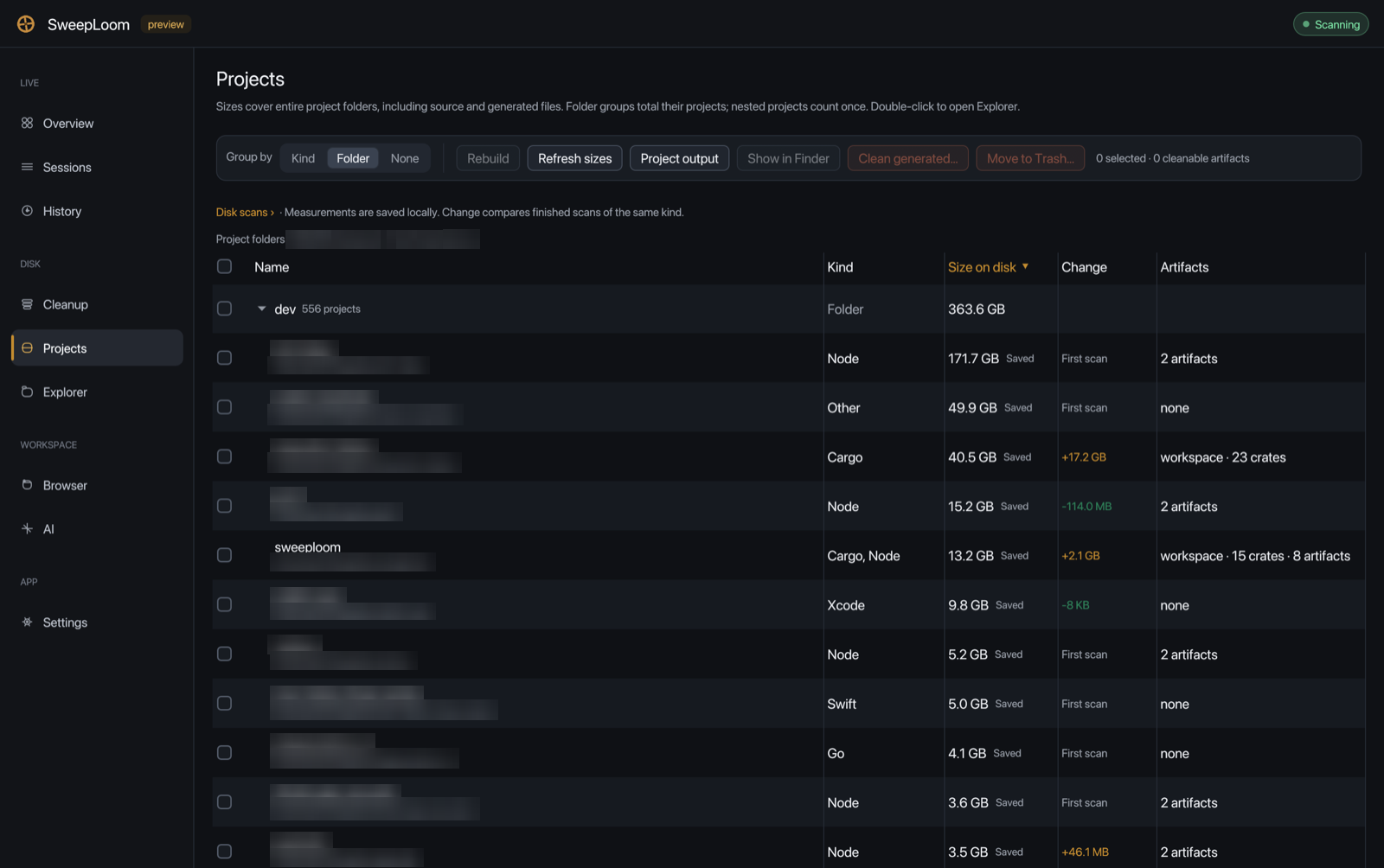
Sizes cover whole project folders, source included; nested projects count once.
How discovery works, and why it got faster while finding more than twice as many projects, is in How SweepLoom finds every project on your machine.
Explorer is the folder inspector: allocated sizes, symlinks not followed, a background scan you can watch, and collapsing that never re-walks the disk.
Workspace
Browser shows real memory and CPU per browser tree. With the optional companion extension it adds a Tabs view (save to Later, discard, focus) and the Later shelf, which keeps a tab's title and URL without closing anything. Without the companion, tab activity is unknown, not zero.
AI lists the stores your coding agents keep, classified by leaf name, with the always-on token estimate.
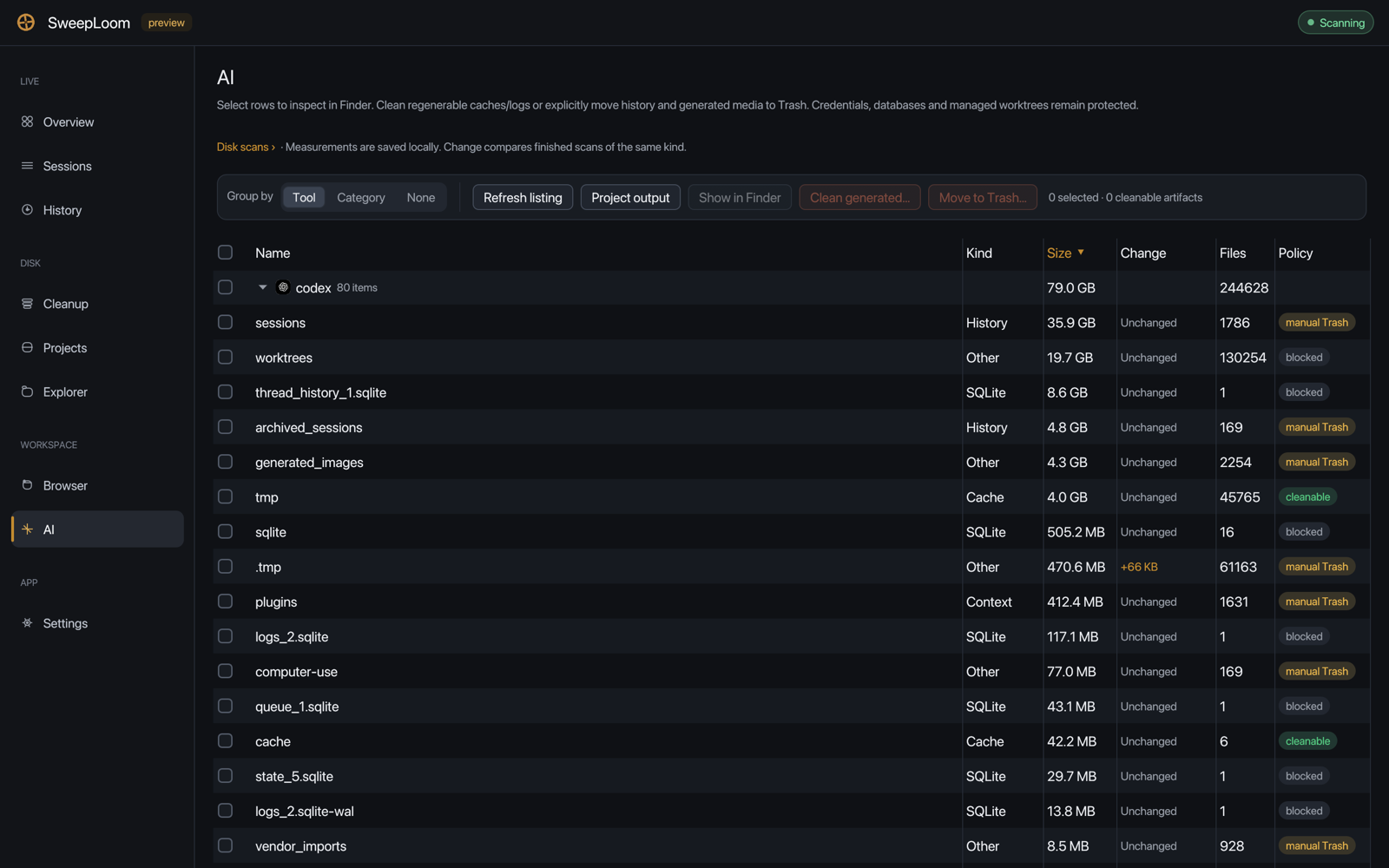
Only caches and logs are cleanable. History can go to the Trash if you choose; credentials, databases and managed worktrees stay blocked.
App
Settings is short on purpose: theme and interface size, keeping SweepLoom in the tray when the window closes (Windows and macOS), starting in the tray at sign-in (Windows), and an About section that says telemetry is None. There is no switch to turn it on.
One safety model
Every destructive action in the app follows the same four steps as the CLI and MCP, with the extra checks that native tools need:
- Plan. Rows come from metadata. Only SAFE generated rows can be pre-selected; native objects never are.
- Revalidate. Before acting: live working directories, executables and arguments, running simulators, in-use Docker objects, loaded Ollama models, and metadata revisions for generated output. A partial scan authorizes nothing.
- Execute. Generated output is deleted. User data goes to the Trash, which you can restore from and which keeps its space until you empty it. Docker,
simctl, Ollama andrustupremove their own objects. - Receipt. A result line per action, and the new measurements land in History.
Fewer crashes, and a log when there is one
This release fixed a release-build abort: redaction sliced non-ASCII process arguments by bytes and could panic. More importantly, release builds now unwind instead of aborting, background workers catch a panic, and the message is appended to a log (~/Library/Logs/SweepLoom/panic.log on macOS, SweepLoom/panic.log under %LOCALAPPDATA% on Windows or ~/.local/state on Linux). A failed scan shows an error and a retry instead of closing the window. If you hit one, attach that file to an issue.
Limits
- The app installs from source, needs Rust 1.95 or newer, and is optional. On macOS, build the signed bundle with
python3 scripts/macos-app.pyso folder permissions survive updates. - Some features are platform-specific. iOS & Xcode is macOS-only, the P/E split needs Apple Silicon, and the tray is Windows and macOS.
- Sizes are honest, not generous. Per-model Ollama sizes can overlap through shared layers, and Trash keeps its space until emptied.
git clone https://github.com/Weavatrix/sweeploom.git
cd sweeploom
cargo run --release -p sweeploom-gui
The desktop app page has every tab with its sub-views in one place.